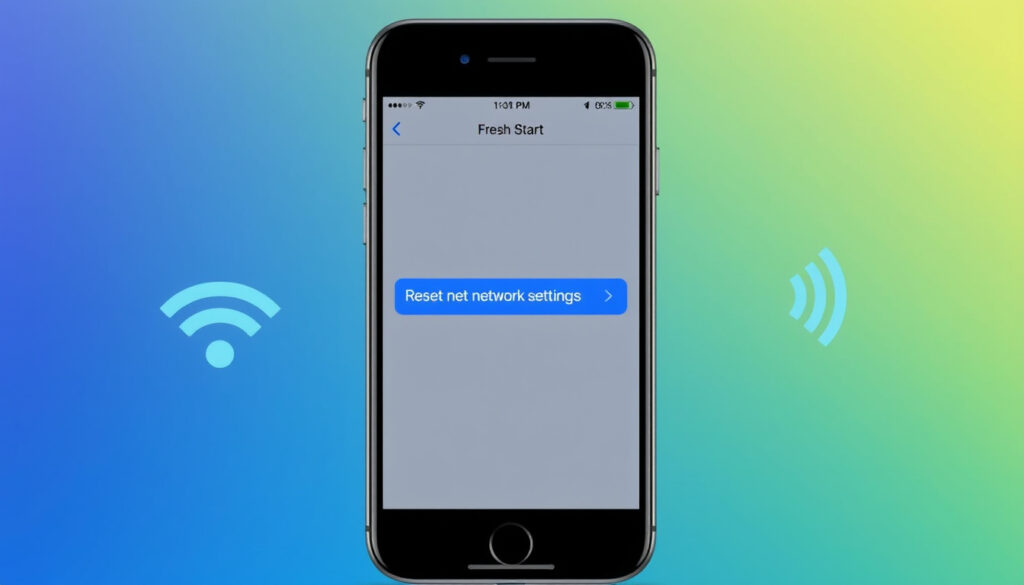
How to Reset Network Settings on iPhone: Step-by-Step Guide
Few things are as frustrating as an iPhone that suddenly won’t connect to Wi-Fi or shows “No Service” when you need it most. The network settings reset is a quick, safe procedure that clears network-related glitches without touching your photos, contacts, or apps. Here’s exactly what happens when you tap that option and how to do it step by step.
Wi-Fi networks removed: Yes ·
Cellular settings reset: Yes ·
VPN & APN settings cleared: Yes ·
Personal data (photos, contacts): Unaffected ·
Passcode required: Yes ·
Time to complete: About 30 seconds
Quick snapshot
- Wi-Fi networks and passwords are erased — Apple Support
- Cellular settings (APN) reset to default — Apple Support
- VPN and Bluetooth pairings cleared — Apple Support
- Personal data remains safe — Apple Support
- Open Settings > General > Transfer or Reset iPhone — Apple Support
- Tap Reset > Reset Network Settings — Apple Support
- Enter passcode to confirm — Bell Support
- Try restarting iPhone first — Apple Support
- Check Wi-Fi router and cellular coverage — Consumer Reports
- Reset network settings if other steps fail — Apple Support
- Does not affect photos, contacts, or apps — Apple Support
- Requires passcode (not Apple ID password) — Bell Support
- Safe to perform multiple times — Apple Support
Six key facts, one pattern: the reset targets only network configurations, leaving everything else untouched.
| Label | Value |
|---|---|
| Does it delete apps? | No |
| Does it erase eSIM? | No |
| Requires passcode? | Yes |
| Resets Wi-Fi passwords? | Yes |
| Resets cellular settings? | Yes |
| Requires iOS version | iOS 15 or later (consistent across versions) |
How do I reset my phone network settings on my iPhone?
Step-by-step guide to reset network settings
- Open Settings and tap General.
- Scroll down and tap Transfer or Reset iPhone (on iOS 15 and later). Apple Support (official iOS guidance) confirms this path.
- Tap Reset at the bottom, then select Reset Network Settings.
- Enter your device passcode when prompted. Bell Support (carrier guide) follows the same sequence and notes the iPhone will reboot automatically.
- The iPhone restarts and default network values are restored.
What you need to know before resetting
The reset only affects network-related data — not your personal files. Apple Support (first-party documentation) states that Wi‑Fi networks and passwords, cellular settings, and VPN/APN settings are removed. If your school or business manages network profiles, consult your IT administrator before resetting.
For anyone repeatedly entering Wi‑Fi passwords, the trade-off is clear: you lose saved credentials but gain a clean slate for connectivity problems. A quick note-taking step — jot down your home Wi‑Fi password before you proceed — turns a 30-second reset into a painless fix.
What will happen if I reset network settings on my iPhone?
Changes to Wi-Fi networks and passwords
Every saved Wi‑Fi network — along with its password — is erased. Apple Support (detailed settings guide) adds that the iPhone’s device name resets to “iPhone” and manually trusted certificates are changed to untrusted. The Wi‑Fi and Ask to Join Networks settings remain turned on after the reset, Apple Support Community (community documentation) confirms.
Cellular settings and APN
Cellular data roaming may be turned off, and APN/MMS settings revert to carrier defaults. EE Device Guides (UK carrier support) uses the same menu path and confirms this. Your eSIM remains intact — Verizon Support (U.S. carrier) clarifies that the network reset does not delete or deactivate eSIM profiles.
VPN and network preferences
VPN settings (except those installed by a configuration profile or MDM) are removed. NordLayer Help (VPN provider guidance) notes that older iOS versions used a different menu path (Settings > General > Reset), but the outcome is identical. Bluetooth pairings are also cleared, so you’ll need to re-pair devices afterward.
The implication: After the reset, you’ll have to re-enter every Wi‑Fi password and re-pair Bluetooth accessories. That’s the price of a clean network slate — one that usually resolves the original problem.
Is it safe to reset network settings?
Impact on personal data
Yes, it is safe. Apple Support (official reset FAQ) explicitly says the reset “does not delete any personal data or media.” Photos, contacts, apps, music, and messages remain untouched. UPeSIM (eSIM provider blog) confirms it is not a full device wipe.
When to reset network settings
Apple recommends resetting network settings only after simpler steps have failed — restart the iPhone, check Airplane Mode, and toggle Wi‑Fi. If those don’t help, the reset is a safe, Apple‑sanctioned next step. PCMag (tech publication) echoes this as a “last resort before more drastic measures.”
Users who fear data loss overthink the network reset. The reality: your photos and contacts are never at risk. The only sacrifice is saved Wi‑Fi passwords — a small inconvenience for a potentially large fix.
Why is my iPhone not connecting to Wi‑Fi?
Common Wi-Fi connectivity causes
- Router issues: power cycle your modem and router first.
- Software glitches: a simple restart often resolves temporary bugs.
- Incorrect network settings: saved credentials may be corrupted.
- Outdated carrier settings: check for updates in Settings > General > About.
Resetting network settings as a solution
When basic steps fail, resetting network settings clears corrupted Wi‑Fi profiles and refreshes the network stack. Consumer Reports (independent testing organization) lists this as an effective step for persistent Wi‑Fi problems. After reset, you’ll need to reconnect to your Wi‑Fi network manually.
The pattern: Most Wi‑Fi issues stem from software rather than hardware. A network reset addresses the software layer without any risk to hardware.
How do I fix my iPhone network problem?
Other troubleshooting steps before resetting
- Check carrier settings: go to Settings > General > About; if an update is available, a prompt will appear.
- Restart iPhone: power off and turn back on.
- Ensure Airplane Mode is off.
- Reset network settings only after trying the above.
When to contact carrier or Apple Support
If the network reset doesn’t fix the issue — no signal, no data, or persistent SOS mode — the problem may be carrier‑specific or hardware related. AT&T Support (U.S. carrier) advises contacting your carrier for APN or account issues. T‑Mobile Support (carrier guide) similarly recommends reaching out if cellular data remains broken after a reset.
A network reset won’t fix a broken antenna or a SIM card that’s physically damaged. If you’ve reset and still see “No Service,” the next step is a visit to an Apple Store or carrier retailer — not another reset.
Upsides
- Quick 30-second process
- No personal data lost
- Resolves many Wi‑Fi and cellular glitches
- Safe to repeat multiple times
Downsides
- All saved Wi‑Fi passwords erased
- Bluetooth pairings cleared
- VPN and APN settings reset
- Device name reverts to “iPhone”
What’s known and what’s not
Resetting network settings is well documented by Apple and carriers, but some details vary by region or device.
Confirmed facts
- Resetting network settings does not delete personal data (Apple Support).
- Wi‑Fi passwords and VPN settings are cleared (Apple Support).
- Process is accessible via Settings > General > Transfer or Reset iPhone (EE Device Guides).
- Passcode (not Apple ID) is required (Bell Support).
What’s unclear
- Whether network reset fixes every network issue — it may not resolve hardware faults or account‑side problems.
- Exact behavior for carrier‑specific settings (e.g., MMS, APN) in different regions — some carriers push custom APN data after reset.
What the experts say
“Reset network settings: Returns network settings to their defaults. Your Wi‑Fi networks and passwords, cellular settings, and VPN and APN settings are removed.”
— Apple Support documentation (official reset guide)
“Resetting network settings will not delete any personal data, photos, or contacts. It is a safe troubleshooting step.”
— Verizon Support (carrier knowledge base)
For anyone battling an iPhone that won’t connect to Wi‑Fi or shows “No Service,” the network settings reset is a safe, effective first move. It wipes out corrupted network configurations without endangering personal data. The trade-off is clear: you lose saved passwords and pairings, but gain a clean foundation for connectivity. If the problem persists after the reset, the next step isn’t another reset — it’s a call to your carrier or a visit to Apple Support.
Related reading
youtube.com, discussions.apple.com, youtube.com, reddit.com, youtube.com
If you encounter persistent connectivity problems, you can safely reset network settings on your iPhone without losing personal data.
Frequently asked questions
How many times can I reset network settings on my iPhone?
As many times as you like. There is no limit, and it does not degrade performance. Each reset clears and rebuilds network settings from scratch.
Will resetting network settings affect Bluetooth connections?
Yes. All Bluetooth pairings — including headphones, speakers, and car kits — are removed. You will need to re-pair each device.
Does network reset reset my APN settings?
Yes. APN (Access Point Name) settings return to carrier defaults. If you use a custom APN, note the values before resetting.
Can I reset network settings without an internet connection?
Yes. The process is performed entirely on the device and does not require Wi‑Fi or cellular data.
Is network reset the same as a factory reset?
No. A factory reset wipes all content and settings. Network reset only affects network configurations. Personal data remains intact.
Will I lose my eSIM after resetting network settings?
No. eSIM profiles are not removed by a network reset. They remain active on the device.
Do I need to back up before resetting network settings?
No. Since no personal data is affected, a backup is optional. However, it’s always good practice to have a recent backup.
Does resetting network settings fix cellular data issues?
Often, yes. It resets APN, roaming, and other cellular settings. If the issue is configuration‑related, a network reset may resolve it.
More related posts
 USMNT v Mexico Lineup : 2025 Gold Cup Final Re ult & Hi tory
 Where to Watch Super Bowl 2026: TV, Streaming & Free Options
 Fastest Way to Lose Weight: Evidence-Based Strategies
 3I/ATLAS: Avi Loeb’s Analysis of Strange Interstellar Comet
 Spectrum Phone Number Customer Service Live Person (2025)
 Fleishman Is in Trouble: Season 2, Ending & Cast Guide
 Big Little Lies Cast: Complete Seasons 1, 2 & 3 List
 Is Walmart Open Today? Hours, Holidays & More